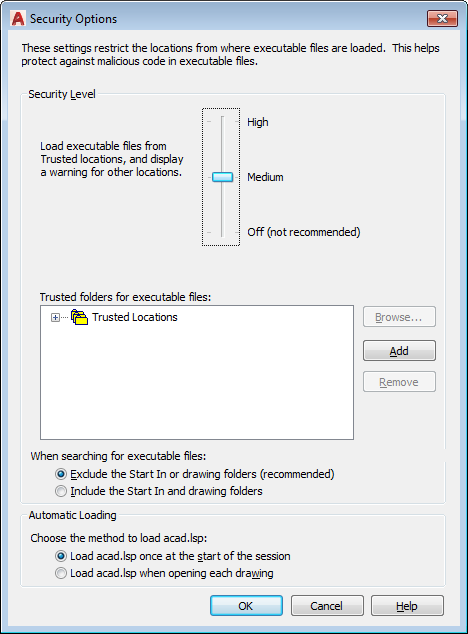
Controls the security restrictions for running executable files in AutoCAD.
Security Level
Controls the level of path restriction for executable files, and whether a warning dialog box displays. (SECURELOAD system variable)
- High
Loads executable files from trusted locations only. Executable files in all other locations are ignored. (SECURELOAD system variable = 2)
- Medium
Loads executable files from trusted locations. Displays a warning during load requests from executable files that are not in trusted locations. (SECURELOAD system variable = 1)
- Off
Loads executable files without warning. This option maintains legacy behavior, but is not recommended. (SECURELOAD system variable = 0)
Trusted Locations
Controls the trusted folder locations from which executable files can be loaded and run.
- Tree View
Lists the folders in the Support File Search Path that have permission to load and run executable files. (TRUSTEDPATHS system variable)
- Browse
Displays the Browse for Folder dialog box, in which you can specify a new location for the folder selected in the list.
- Add
Adds a folder location to the list of trusted locations. After you click Add, you can click Browse to navigate to the desired folder.
- Remove
Removes the selected folder location from the list trusted locations.
Automatic Loading
- When Searching For Executable Files:
Controls whether the Start In and current drawing folders are included or excluded when searching for an executable file. The Start In folder is determined by the desktop shortcut icon or starting the program by double-clicking a file. (LEGACYCODESEARCH system variable)
- Choose the method to load acad.lsp:
Controls whether the acad.lsp file is loaded into every drawing or just the first drawing opened in a session. (ACADLSPASDOC system variable)
NOTE:Options can be grayed out when they are locked by your CAD manager. All options are grayed out when the application has been started with the /safemode switch.