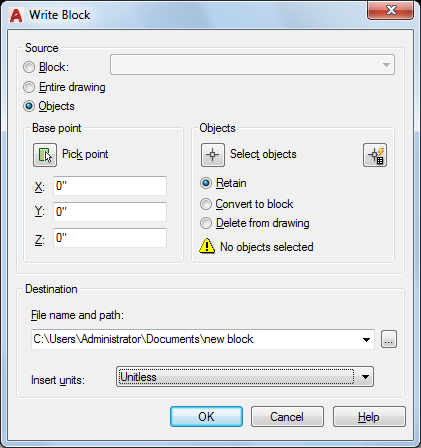
Saves selected objects or converts a block to a specified drawing file.
The Write Block dialog box provides a convenient method for saving part of the current drawing to a different drawing file, or saving a specified block definition as a separate drawing file.
List of Options
The following options are displayed.
Source
Specifies blocks and objects, saves them as a file, and specifies insertion points.
- Block
Specifies an existing block to save as a file. Select a name from the list.
- Entire Drawing
Selects current drawing to save as another file.
- Objects
Selects objects to save as a file. Specify a base point and select objects below.
Base Point
Specifies a base point for the block. The default value is 0,0,0.
- Pick Point
Temporarily closes the dialog box so that you can specify an insertion base point in the current drawing.
- X
Specifies the X coordinate value for the base point.
- Y
Specifies the Y coordinate value for the base point.
- Z
Specifies the Z coordinate value for the base point.
Objects
Sets the effect of block creation on objects used to create a block.
- Retain
Retains the selected objects in the current drawing after saving them as a file.
- Convert to Block
Converts the selected object or objects to a block in the current drawing after saving them as a file.
- Delete from Drawing
Deletes the selected objects from the current drawing after saving them as a file.
- Select Objects Button
Temporarily closes the dialog box so that you can select one or more objects to save to the file.
- Quick Select Button
Opens the Quick Select dialog box, which you can use to filter your selection set.
- Objects Selected
Indicates the number of objects selected.
Destination
Specifies the new name and location of the file and the units of measurement to be used when the block is inserted.
- File Name and Path
Specifies a file name and path where the block or objects will be saved.
- [...]
Displays a standard file selection dialog box.
- Insert Units
Specifies the unit value to be used for automatic scaling when the new file is dragged from DesignCenter ™ or inserted as a block in a drawing that uses different units. Select Unitless if you do not want to automatically scale the drawing when you insert it. See INSUNITS.