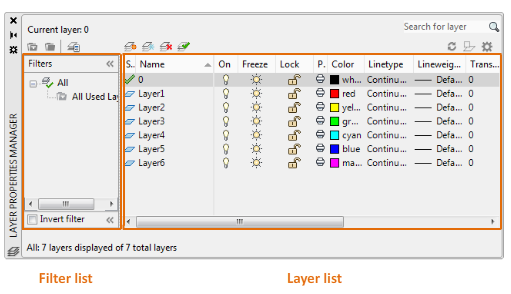
You can add, delete, and rename layers, change their properties, set property overrides in layout viewports, and add layer descriptions.
 Hover over the image to find clickable areas which jump to the Help section for those controls.
Layers and Layer Properties
- New Layer

Creates a layer with a default name that you can immediately change. The new layer inherits the properties of the currently selected layer in the layer list.
- New Layer Frozen VP In All Viewports

Creates a layer and freezes it in all existing layout viewports. This button is accessible from the Model tab or layout tabs.
- Delete Layer

Deletes selected layers. The following layers cannot be deleted:
- Layers 0 and Defpoints
- Layers containing objects, including objects in block definitions
- The current layer
- Layers used in an external reference
- Layers in a partially opened drawing (Not applicable to AutoCAD LT.)
NOTE: Be careful about deleting layers if you are working on a drawing in a shared project or one based on a set of layering standards.
- Set Current

Sets the selected layer as the current layer. New objects are automatically created on the current layer. (CLAYER system variable)
Layer List
Modify the layer properties using the layer list. Click the current setting to change the layer property for the selected layer or group of layers.
NOTE:The layer list can be filtered and sorted to make it easier to find and select the layers that you want to change.
- Sort
Click a column label to sort by that column.
- Column Order
Drag a column to a new location in the list to change the column order.
- Status
- Name
Displays the name of the layer or filter. Press F2 to enter a new name.
- On

Turns the selected layers on and off. When a layer is on, it is visible and available for plotting. When a layer is off, it is invisible and not plotted, even if the setting in the Plot column is turned on.
- Freeze

Freezes the selected layers. You can freeze layers to improve performance and reduce regeneration time in complex drawings. Objects on frozen layers are not displayed, plotted, or regenerated.
In drawings that support 3D modeling, frozen layers are not rendered. (Not applicable to AutoCAD LT.)
TIP:Freeze the layers that you want to remain invisible for long periods. If you plan to switch visibility settings frequently, use the On/Off setting to avoid regenerating the drawing.
- Lock

Locks and unlocks the selected layers. Objects on a locked layer cannot be modified. Objects on locked layers appear faded and a small lock icon is displayed when you hover over the object.
NOTE:Set the fade level for locked layers to see which objects are on locked layers.

- Color

Displays the Select Color dialog box, where you can specify a color for the selected layers.
- Linetype
Displays the Select Linetype dialog box, where you can specify a linetype for the selected layers.
- Lineweight
Displays the Lineweight dialog box, where you can specify a lineweight for the selected layers.
- Transparency
Displays the Transparency dialog box, where you can specify a transparency for the selected layers. Valid values are from 0 to 90. The higher the value, the more transparent the objects appear.
- Plot Style
Displays the Select Plot Style dialog box where you can change the plot style for the selected layers. For color-dependent plot styles (the PSTYLEPOLICY system variable is set to 1), you cannot change the plot style associated with a layer.
- Plot

Controls whether the selected layers are plotted. If you turn off plotting for a layer, the objects on that layer are still displayed. Layers that are off or frozen are not plotted, regardless of the Plot setting.
- New VP Freeze

Freezes selected layers in new layout viewports. For example, freezing the DIMENSIONS layer in all new viewports restricts the display of dimensions in any newly created layout viewports but does not affect the DIMENSIONS layer in existing viewports. If you later create a viewport that requires dimensions, you can override the default setting by changing the current viewport setting.
- VP Freeze (available only from a layout tab)
Freezes selected layers only in the current layout viewport. If a layer is already frozen or turned off in the drawing, you can't thaw the layer in the current layout viewport.
- VP Color (available only from a layout tab)
Sets an override for the color associated with the selected layer for the current layout viewport.
- VP Linetype (available only from a layout tab)
Sets an override for the linetype associated with the selected layer for the current layout viewport.
- VP Lineweight (available only from a layout tab)
Sets an override for the lineweight associated with the selected layer for the current layout viewport.
- VP Transparency (available only from a layout tab)
Sets an override for transparency associated with the selected layer for the current layout viewport.
- VP Plot Style (available only from a layout tab)
Sets an override for the plot style associated with the selected layer for the current layout viewport. Override settings are not visible in the viewport or plotted when the visual style in the drawing is set to Conceptual or Realistic. For color-dependent plot styles (the PSTYLEPOLICY system variable is set to 1), you cannot set a plot style override.
- Description
(Optional) Describes the layer or the layer filter.
Manage the Layer List
- Search for Layer

Filters the layer list by name as you enter characters in the box.
The following wildcards are available:
| Character
| Definition
|
|---|
| # (pound)
| Matches any numeric digit
|
| @ (at)
| Matches any alphabetic character
|
| . (period)
| Matches any non-alphanumeric character
|
| * (asterisk)
| Matches any string and can be used anywhere in the search string
|
| ? (question mark)
| Matches any single character; for example, ?BC matches ABC, 3BC, and so on
|
| ~ (tilde)
| Matches anything but the pattern; for example, ~*AB*matches all strings that don't contain AB
|
| [ ]
| Matches any one of the characters enclosed; for example, [AB]C matches AC and BC
|
| [~]
| Matches any character not enclosed; for example, [~AB]C matches XC but not AC
|
| [-]
| Specifies a range for a single character; for example, [A-G]C matches AC, BC to GC, but not HC
|
| ` (reverse quote)
| Reads the next character literally; for example, `~AB matches ~AB
|
- New Property Filter

Displays the Layer Filter Properties dialog box, where you can create a layer filter. Layer filters limit the layers listed in the Layer Properties Manager to those with specified settings and properties. For example, you can limit the list of layers to only those that are turned on and thawed.
- New Group Filter

Creates a layer filter that includes only the layers that you drag to the filter.
- Invert Filter
Displays all layers that do not meet the criteria in the selected layer filter.
Filters List
Displays the list of layer filters in the drawing. Click
 to expand or collapse the filter list. When the Filters list is collapsed, use the Layer Filter button (
 ) at the bottom-left corner of the Layer Properties Manager to display a list of filters.
There are seven predefined filters:
- All. Lists all the layers in the current drawing.
- All non-Xref Layers. Lists all the layers that are not referenced from an xref drawing.
- All Used Layers. Lists all the layers that contain objects.
- Xref Lists all the layers being referenced from an xref drawing.
- Xref Overrides Lists all the layers being referenced from an xref drawing that has a xref layer property override.
- Viewport Overrides. Lists all the layers containing property overrides in the current layout viewport.
- Unreconciled New Layers. Lists all new unreconciled layers that were added since the drawing was last opened, saved, reloaded, or plotted. When the layer notification feature is turned on, a new layer is considered unreconciled until you accept the layer as reconciled.
Miscellaneous Tools
- Layer States Manager

Displays the Layer States Manager, where you can save, restore, and manage sets of layer settings that are called layer states.
- Refresh

Refreshes the order of the layer list and the layer status information.
- Toggle Override Highlight

Turns on or off the background highlighting for layer property overrides. By default, the background highlighting is turned off.
- Settings

Displays the Layer Settings dialog box, where you can set various display options.
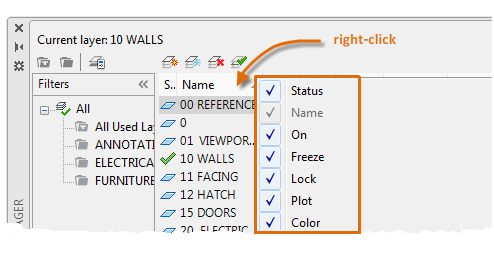
Column Label Shortcut Menu
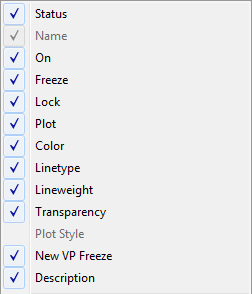
- Column Names
Lists all columns by name. A check mark indicates that the column is included in the display. Click a column name to display or hide the column. VP Freeze, VP Color, VP Linetype, VP Lineweight, and VP Plot Style are available only when a layout viewport is active.
- Customize
Displays the Customize Layer Columns dialog box, where you can specify which columns are hidden or displayed, or change the column order.
- Maximize All Columns
Changes the width of all columns to fit the column headers and the data content.
- Maximize Column
Changes the width of the selected column to fit the column header and the data content of that column.
- Optimize all columns
Changes the width of all columns to fit the content in each column.
- Optimize column
Changes the width of the selected column to fit the content in that column.
- Freeze column (or Unfreeze column)
Freeze keeps the column, and any columns to the left, visible while scrolling. Unfreeze so that all columns scroll.
- Restore All Columns to Defaults
Sets all columns to their default display and width settings.
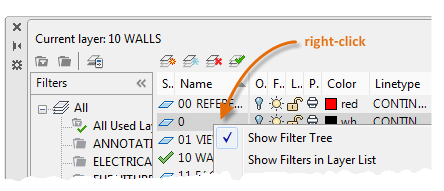
Layer List Shortcut Menu
- Show Filter Tree
Displays the Filters list. Clear this option to hide the list. Same as
.
- Show Filters in Layer List
Displays layer filters at the top of the layer list. Clear this option to display only layers in the layer list.
- Set Current
Sets the selected layer as the current layer. Same as
 .
.
- New Layer
Creates a layer. Same as
 .
.
- Rename Layer
- Delete Layer
Deletes selected layers from the drawing file. Same as
 .
.
- Change Description
Edits a description for the selected layer. If layer filters are displayed in the layer list, editing the description for the filter, edits it on all layers in the filter.
- Remove from Group Filter
Removes the selected layers from the layer group filter that is selected in the Filters list.
- Reset Xref Layer Properties for
Removes a single override property or all property overrides on selected layers (or all layers) for an xref or all xrefs. Different options display in a flyout menu depending on where the cursor is located when the shortcut menu is opened. To remove a single xref property override, right-click the property override.
- Reconcile Layer
Removes new layers from the Unreconciled New Layers filter. This option is available only when unreconciled layers are selected. When the layer notification feature is turned on, a new layer is considered unreconciled until you accept the layer as reconciled.
- Remove Viewport Overrides For
This option is only available in layout viewports. Removes a single override property or all property overrides on selected layers (or all layers) for the current viewport or all viewports. Different options display in a flyout menu depending on where the cursor is located when the shortcut menu is opened. To remove a single property override, right-click the property override.
- New Layer Frozen in All Viewports
Creates a layer and freezes it in all existing layout viewports and new viewports. Same as
 .
.
- VP Freeze Layer
Freezes the selected layer in all new and existing layout viewports.
- VP Thaw Layer in All Viewports
Thaws the selected layer in all new and existing layout viewports.
- Isolate Selected Layers
Turns off all layers except the selected layers.
- Merge Selected Layer(s) To
Combines the selected layers into a specified layer. Objects on the selected layers are moved to the new layer and inherit the properties for that layer.
- Select All
Selects all the layers displayed in the layer list.
- Clear All
Deselects all layers in the layer list.
- Select All But Current
Selects all the layers displayed in the layer list except the current layer.
- Invert Selection
Selects everything displayed in the layer list except the items that are currently selected.
- Invert Layer Filter
Displays all layers that do not meet the criteria in the active layer property filter.
- Layer Filters
Displays a list of layer filters, including default layer filters. Click a filter to apply it to the layer list.
- Save Layer States
Saves the current layer settings as a layer state.
- Restore Layer State
Displays the Layer States Manager, where you can select a layer state to restore. This operation restores only those settings that were specified in the Layer States Manager when the layer state was saved.
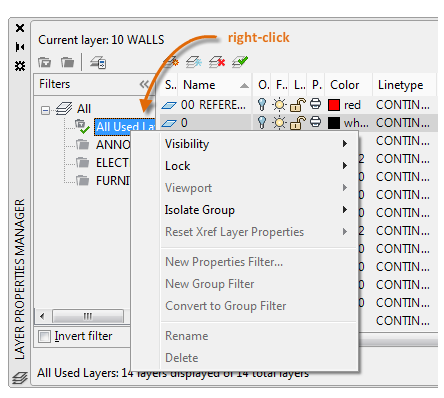
Filter List Shortcut Menu
- Visibility
Changes the visibility of the layers in the selected filters.
- Lock
Controls whether layers are locked or unlocked in the selected filters.
- Viewport
In the current
layout viewport, controls the VP Freeze setting of the layers in the selected filters.
- Isolate Group
Freezes all layers that are
not included in the selected filters.
- All Viewports.
- In all layout viewports, sets VP Freeze for all layers that are not included in the selected filters.
- In model space, freezes all layers that are not in the selected filter, except for the current layer.
- Active Viewport Only.
- In the current layout viewport, sets VP Freeze for all layers that are not included in the selected filters.
- In model space, turns off all layers that are not included the selected filters, except for the current layer.
- Reset Xref Layer Properties
Removes the xref property overrides for the selected xref. You can either reset all overrides for a selected xref or a specific xref layer property override.
- New Properties Filter
Displays the Layer Filter Properties dialog box. Same as
.
- New Group Filter
Creates a layer group filter. Same as
.
- Convert to Group Filter
Converts the selected layer property filter to a layer group filter.
- Rename
Edits the selected layer filter name.
- Delete
Removes the selected layer filter. You cannot delete the All, All Used Layers, or Xref layer filters.
- Properties
Displays the Layer Filter Properties dialog box, where you can modify the definitions of the selected layer property filter. This option is available only when a layer property filter is selected.
- Select Layers
Adds or replaces layers in the selected layer group filter. This option is available only when a layer group filter is selected.
- Add. Adds layers to the selected layer group filter from the objects selected in the drawing.
- Replace. Replaces the layers of the selected layer group filter with the layers of the objects that are selected in the drawing.
 This layer is the current layer
 This layer contains objects
 This layer does not contain any objects
 This layer contains objects, and a property override is turned on in a layout viewport
 This layer does not contain any objects, and a property override is turned on in a layout viewport
 This layer contains objects, and xref and viewport property overrides is turned on in a layout viewport.
 This layer does not contain objects, and xref and viewport property overrides is turned on in a layout viewport.
 This layer contains objects, and an xref property override is turned on.
 This layer does not contain objects, and an xref property override is turned on.