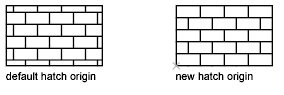
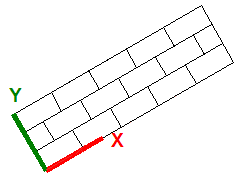
By default, the alignment and orientation of a hatch pattern is determined by the origin point and orientation of the UCS (user coordinate system), but you can change these settings as needed.
- Click Home tab
 Draw panelHatch.
- Click Hatch Creation tabProperties panelPattern.

- On the Pattern panel, click a hatch pattern.
- On the Origin panel, click Set Origin, and specify a point in the drawing. Click Hatch Creation tabOrigin panelSet Origin.

- On the Properties panel, specify a hatch angle. (Hatch Creation tabProperties panelPattern.
 )
) - In the drawing area, click inside each area that you want to hatch.
- Click Hatch Creation tabClose panelClose Hatch Creation.