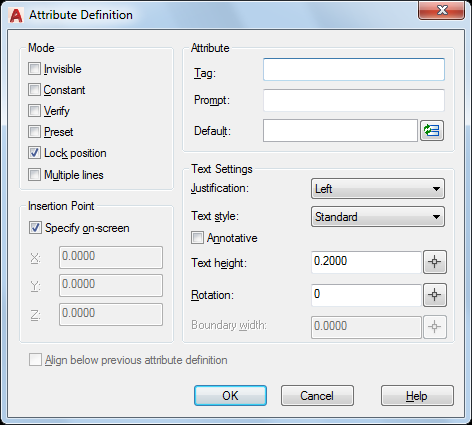
List of Options
The following options are displayed.
Mode
Sets options for attribute values associated with a block when you insert the block in a drawing.
The default values are stored in the AFLAGS system variable. Changing the AFLAGS setting affects the default mode for new attribute definitions and does not affect existing attribute definitions.
- Invisible
Specifies that attribute values are not displayed or printed when you insert the block. The ATTDISP command overrides the Invisible mode.
- Constant
Assigns attributes a fixed value for the attribute when you insert the block. This setting is used for information that never changes.
- Verify
Prompts you to verify that the attribute value is correct when you insert the block.
- Preset
Sets the attribute to its default value without displaying a prompt when you insert the block. The Preset option applies only when prompts for attribute values are set to be displayed at the Command prompt (ATTDIA is set to 0).
- Lock Position
Locks the location of the attribute within the block reference. When unlocked, the attribute can be moved relative to the rest of the block using grip editing, and multiline attributes can be resized.
- Multiple Lines
Specifies that the attribute value can contain multiple lines of text, and lets you specify a boundary width for the attribute.
Attribute
Sets attribute data.
- Tag
Specifies the name with which to Identify the attribute. Enter the attribute tag using any combination of characters except spaces. Lowercase letters are automatically changed to uppercase.
- Prompt
Specifies the prompt that will be displayed when you insert a block containing this attribute definition.
If you do not enter a prompt, the attribute tag is used as a prompt. If you select Constant in the Mode area, the Prompt option is not available.
- Default
Specifies the default attribute value.
- Insert Field Button
Displays the Field dialog box, in which you can insert a field as all or part of the value for an attribute.
- Multiline Editor Button
When Multiple Line mode is selected, displays an in-place text editor with a text formatting toolbar and ruler. The ATTIPE system variable controls whether the Text Formatting toolbar displayed is the abbreviated version, or the full version.
Insertion Point
Specifies the location for the attribute. Enter coordinate values, or select Specify On-screen and use your pointing device to specify the location of the attribute relative to other objects.
- Specify On-Screen
Displays a Start Point prompt when the dialog box closes. Use the pointing device to specify the location of the attribute relative to other objects.
- X
Specifies the X coordinate of the attribute insertion point.
- Y
Specifies the Y coordinate of the attribute insertion point.
- Z
Specifies the Z coordinate of the attribute insertion point.
Text Settings
Sets the justification, style, height, and rotation of the attribute text.
- Justification
Specifies the justification of the attribute text.
- Text Style
Specifies a predefined text style for the attribute text. Currently loaded text styles are displayed.
- Annotative
Specifies that the attribute is annotative. If the block is annotative, the attribute will match the orientation of the block.
- Text Height
Specifies the height of the attribute text. Enter a value, or choose Height to specify a height with your pointing device. The height is measured from the origin to the location you specify.
If you select a text style that has fixed height—any value other than 0.0—or if you select Align in the Justification list, the Height option is not available.
- Rotation
Specifies the rotation angle of the attribute text. Enter a value, or choose Rotation to specify a rotation angle with your pointing device. The rotation angle is measured from the origin to the location you specify.
If you select Align or Fit in the Justification list, the Rotation option is not available.
- Boundary Width
Specifies the maximum length of the lines of text in a multiple-line attribute before wrapping to the next line. A value of 0.000 means that there is no restriction on the length of a line of text.
This option is not available for single-line attributes.
Align Below Previous Attribute Definition
Places the attribute tag directly below the previously defined attribute.
If you have not previously created an attribute definition, this option is not available.