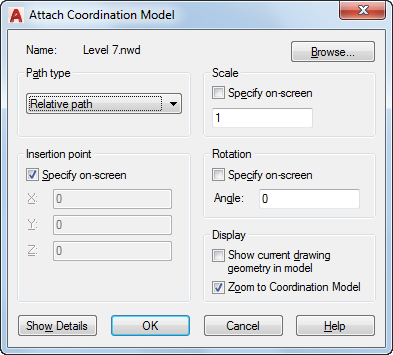
Locates, inserts, names, and defines the parameters and details of attached coordination models, such as NWD and NWC Navisworks files.
List of Options
The following options are displayed.
Name
Identifies the coordination model you have selected to attach.
Browse
Opens the Select Coordination Model dialog (a standard file selection dialog box).
Path Type
Specifies how the coordination model file is found and loaded: Full (absolute) path, Relative (to the host drawing) path, No Path (file resides in the same folder as the host drawing). The default path type is Relative path. Use
REFPATHTYPE system variable to change the default path type.
Insertion Point
Sets where the coordination model insertion point is attached in the drawing. Specify On-Screen is the default. The default insertion point is 0,0,0.
- Specify On-Screen
Prompts you to specify the base point of the coordination model when the dialog is closed. Allows you to input at the Command prompt or using the pointing device. If Specify On-Screen is cleared, enter the insertion point in X, Y, and Z.
- X
Sets the
X coordinate value.
- Y
Sets the
Y coordinate value.
- Z
Sets the
Z coordinate value.
Scale
Sets the relative scale of the coordination model.
- Specify On-Screen
Prompts you to specify the scale of the coordination model when the dialog is closed. Allows you to input at the Command prompt or using the pointing device.
- Scale Factor Field
If Specify On-Screen is cleared, enter a value for the scale factor. The default scale factor is 1.
Rotation
Sets an angle of rotation for the coordination model.
- Specify On-Screen
Prompts you to specify the rotation angle of the coordination model when the dialog is closed. Allows you to input at the Command prompt or using the pointing device.
- Angle
If Specify On-Screen is cleared, enter the rotation angle value in the dialog box. The default rotation angle is 0.
Display
- Show Current Drawing Geometry in Model
Controls the display of the geometry on the current drawing, if the current drawing is part of the coordination model.
- Zoom to Coordination Model
Controls whether to zoom in to the coordination model after it is attached.
Show Details
- Found In
Displays the path where the coordination model file is located.
- Saved Path
Displays the path that is saved with the drawing when the coordination model file is attached. The path is dependent upon the Path Type setting.